Jellyfish Lighting Scenes: Building Presets for Every Season
How to build Jellyfish lighting scenes and presets for holidays, everyday use, and special occasions so your roofline is always ready.
Jellyfish lighting scenes are saved combinations of color, brightness, and pattern that you can recall instantly instead of building a look from scratch every time. Once you have a library of scenes built out, switching your house from a quiet weeknight look to full holiday color takes one tap.
Most homeowners start with a handful of manufacturer presets, then build their own over the first year as they figure out what actually gets used. A little organization early on saves time later, especially once you have zones and multiple seasonal looks stacked up.
Here is how to think about building a scene library that covers everyday use, holidays, and special occasions on your Jellyfish lighting system.
What a scene actually saves
A scene stores the color or color pattern, brightness level, and any animation like a slow fade or chase effect, applied to a zone or the whole house. Recalling a scene applies all of that instantly rather than making you rebuild it.
Some scenes are static, like a single warm white tone, while others are dynamic, cycling through colors or syncing with music. Dynamic scenes tend to get used for parties and specific events rather than everyday lighting.
Because scenes can be applied per zone, you can layer a static warm white on one part of the house with a dynamic color scene on another, as covered in our guide to setting up lighting zones.
Starting with manufacturer presets
The app ships with a library of built-in presets covering holidays, sports teams, and general color themes, which is the fastest way to get started without building anything from scratch. Trying a handful of these in the first week is a good way to learn what the system can do.
Presets are also a useful baseline to tweak rather than build from nothing. Adjusting brightness or swapping one color in a preset is much faster than starting a custom scene from a blank palette.
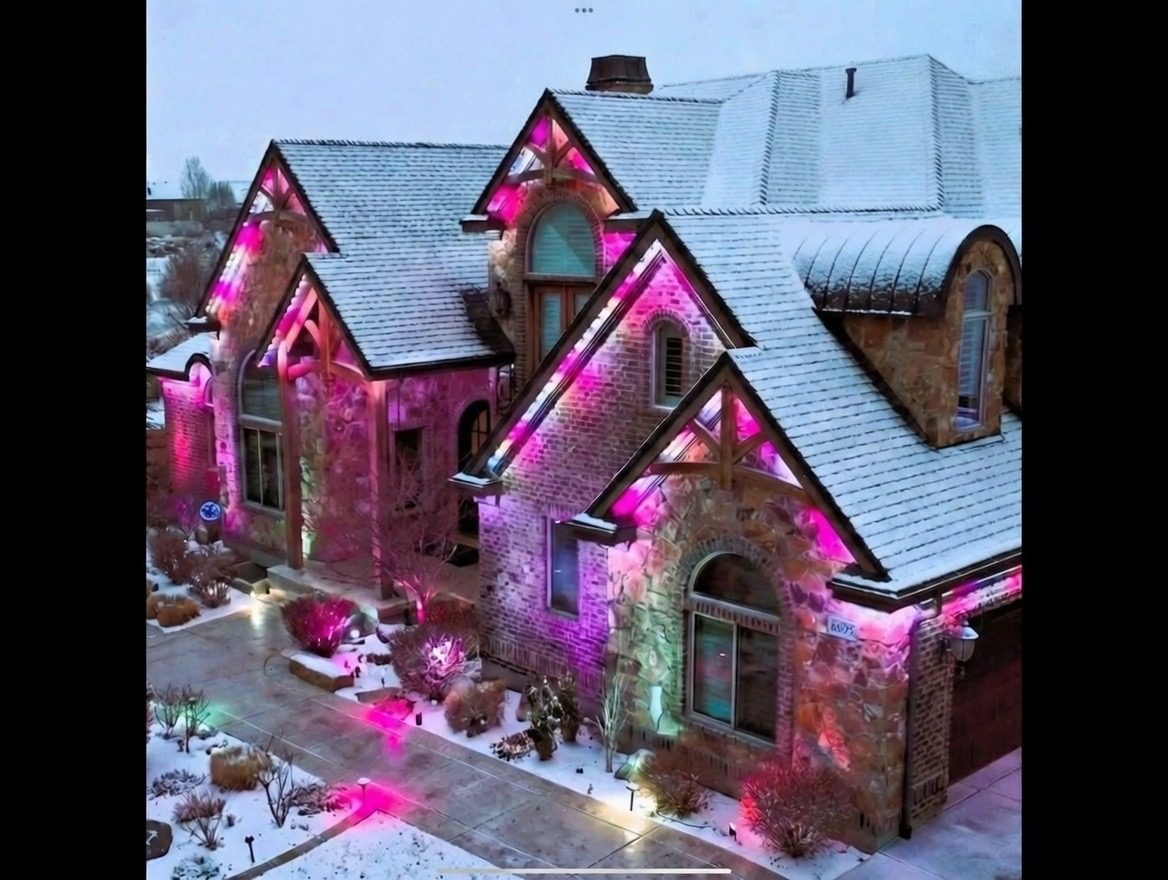
Not every preset will suit your house's brick color or trim, so expect to spend some time testing which ones actually look good against your specific home.
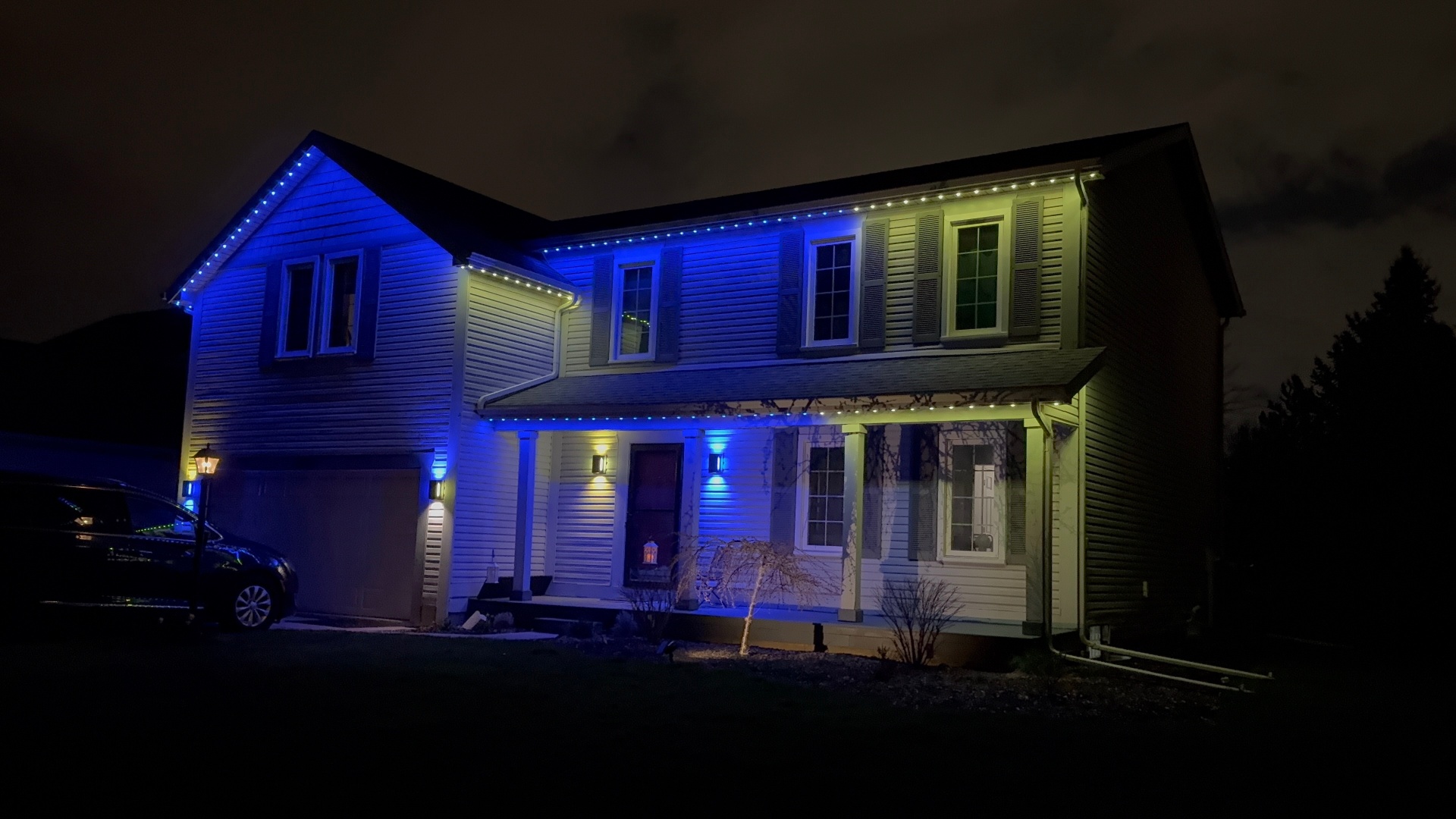
Building an everyday scene you will actually use most
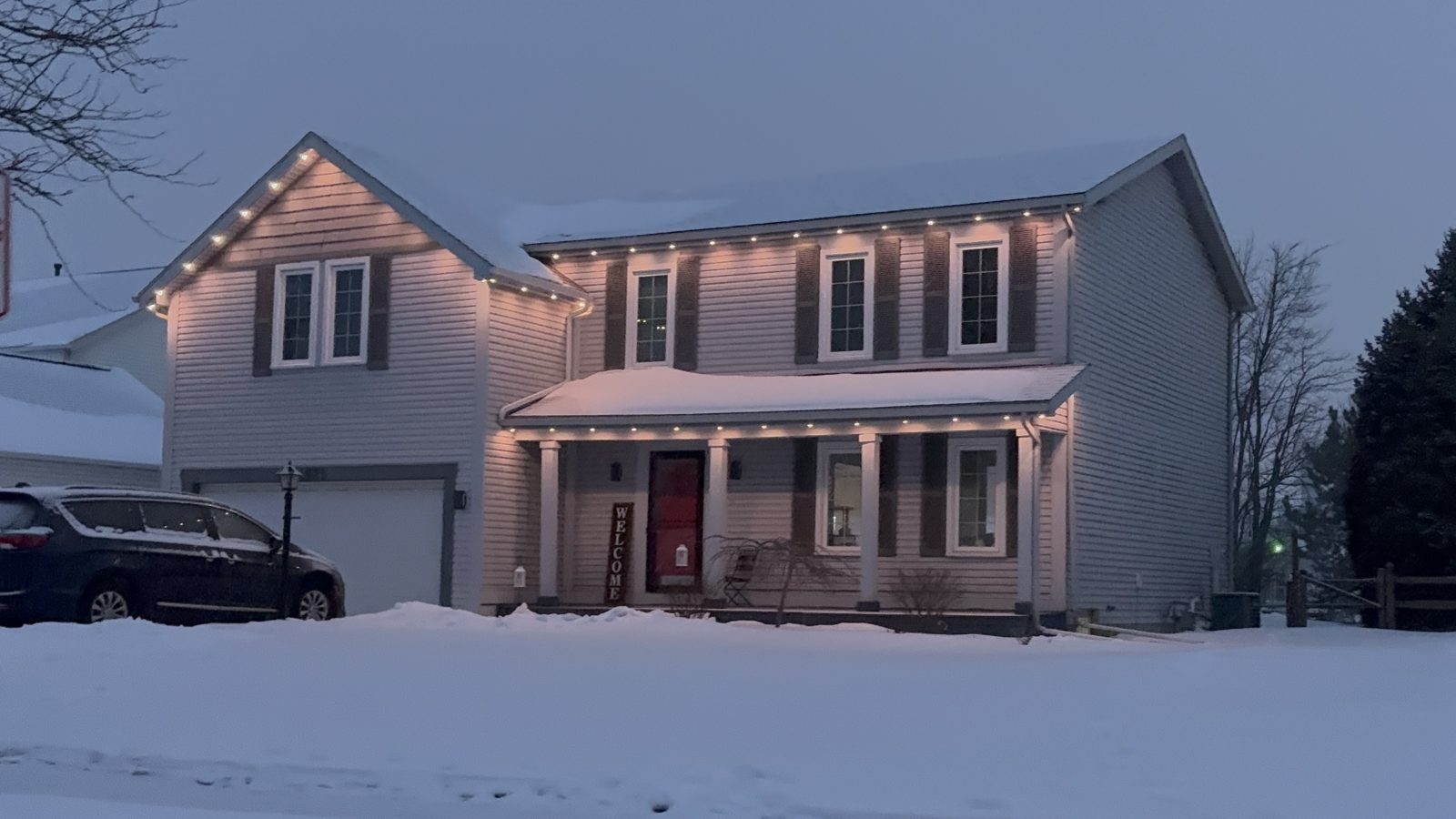
Most homeowners end up using one everyday scene far more than any holiday color, so it is worth spending real time getting it right. A warm white in the 2700 to 3000 Kelvin range tends to read as inviting rather than clinical, closer to traditional incandescent light.
Brightness matters as much as color temperature for an everyday scene. Full brightness every night can feel like a stadium rather than a home, so many owners dim their default scene slightly below maximum.
This everyday scene is worth setting as your default in the schedule, since it is what your house will show most nights of the year.
Building out seasonal and holiday presets
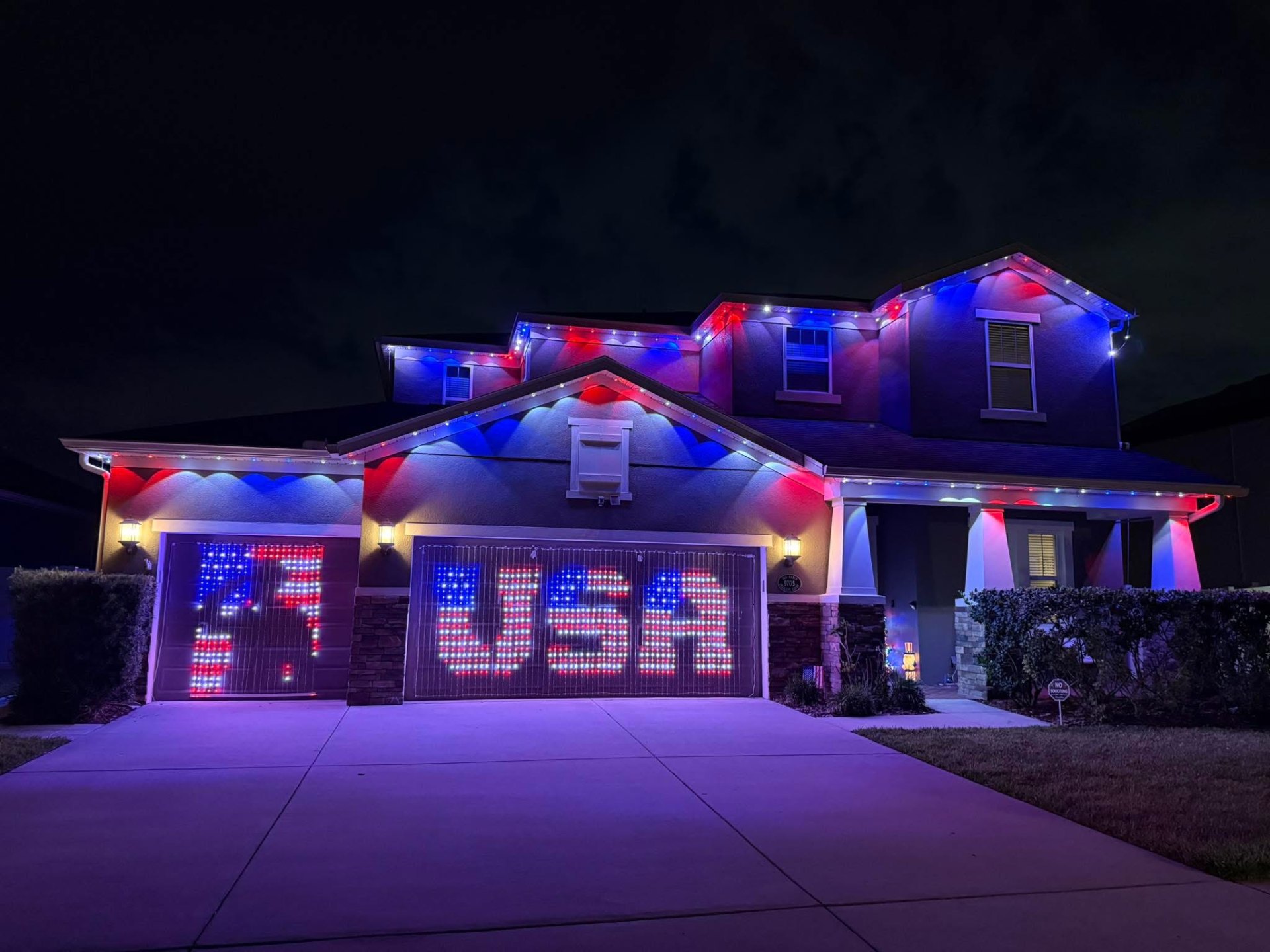
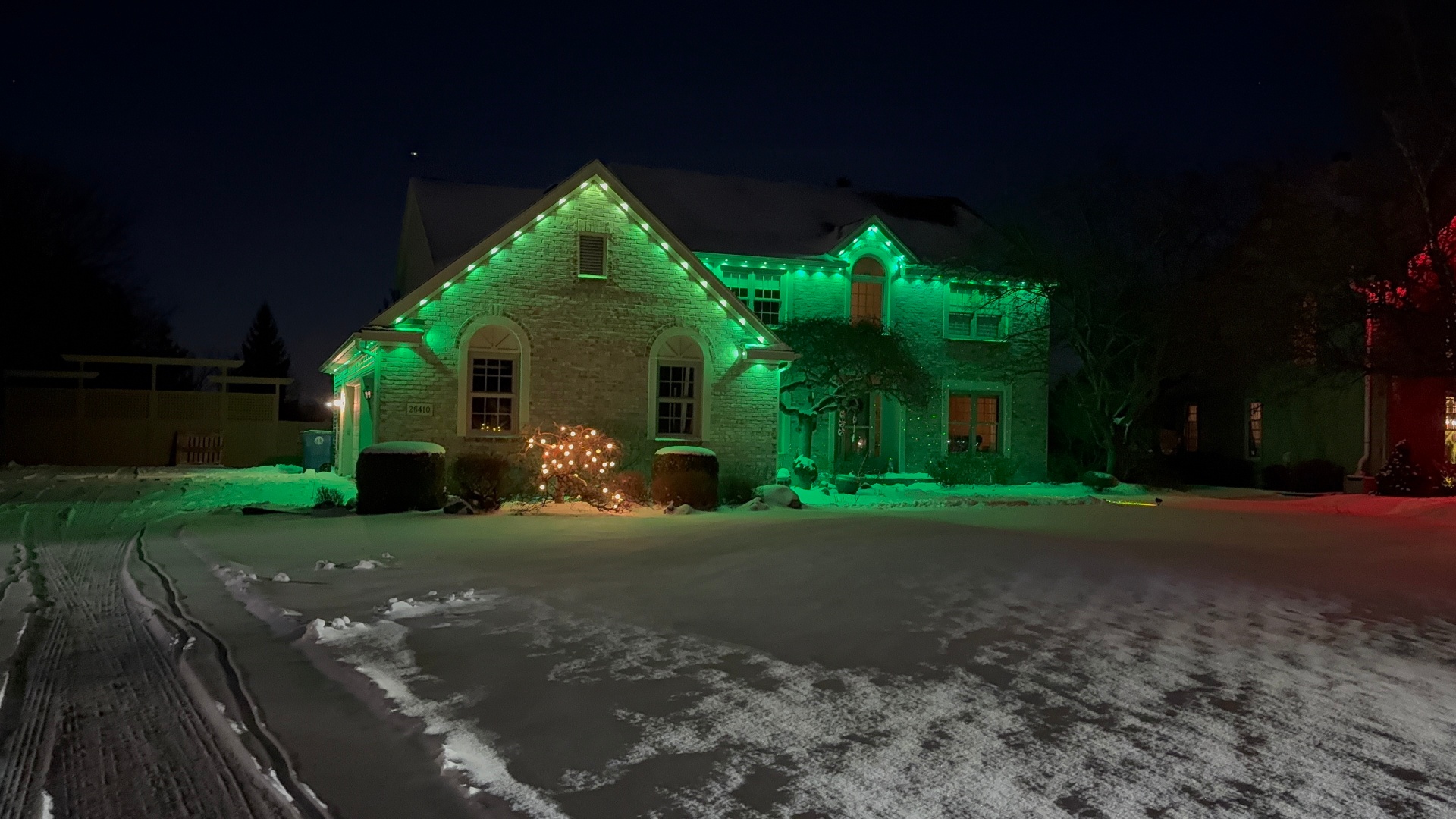
Holiday scenes are where most people start experimenting, and it helps to build a few full house looks in advance rather than scrambling the week of a holiday. Red and green combinations for winter, orange and purple for fall, and patriotic themes for summer holidays are common starting points.
Building these ahead of time and saving them under clear names means you can switch the whole house with one tap when the season actually arrives, rather than rebuilding the scene from memory every year.
It is worth revisiting saved holiday scenes each year since brightness or color preferences can shift, and the app itself sometimes adds new preset options worth incorporating.
For team-specific game day scenes, see our dedicated guide on syncing colors to your favorite team.
- Winter holiday: reds, greens, or classic warm white with a soft twinkle
- Fall: orange, purple, and amber tones
- Patriotic: red, white, and blue for summer holidays
- Everyday: dimmed warm white as a year-round default
- Special occasions: birthdays, graduations, or team colors as needed
Organizing your scene library as it grows
Once you have more than five or six scenes saved, a flat list gets hard to navigate quickly, especially if you are trying to switch scenes with guests standing around waiting. Grouping scenes into folders or categories, if your app version supports it, keeps things findable.
Clear, specific names help more than generic ones. 'Christmas Classic Red Green' is easier to find in a hurry than 'Scene 4'.
Periodically deleting scenes you built once and never used again keeps the list from becoming cluttered with duplicates and near-identical variations.
Scheduling scenes so you do not have to remember them
Beyond manually tapping a scene, the app lets you schedule specific scenes to specific dates or date ranges, which is useful for holidays that fall on the same time every year. Setting this up once in the fall means your house automatically shows holiday colors on the right day without a reminder.
Daily scheduling still applies underneath seasonal scenes, so you can have a holiday color scene that still turns off at your usual bedtime rather than running all night.
This kind of automation is one of the clearest advantages permanent lighting has over string lights, since there is no ladder trip required to update the display for a new season.
Frequently asked questions
How many scenes can I save?
The app supports a large number of saved scenes, well beyond what most households actually use. Practical limits come from how many you can realistically keep organized, not a hard cap.
Can I schedule a holiday scene to turn on automatically every year?
Yes, scenes can be scheduled to specific dates, so a holiday look can run automatically each year once it is set up, though it is worth checking the schedule annually.
Do dynamic color-changing scenes use more electricity than static ones?
The difference is minimal since LEDs draw very little power either way. See our electricity usage guide for more detail on typical draw.
Can different zones run different scenes at the same time?
Yes, each zone can run its own scene independently, so a front zone can stay warm white while a back patio zone runs a color scene for a party.
The bottom line
- Scenes save color, brightness, and animation for instant recall.
- Start with manufacturer presets before building fully custom scenes.
- Your everyday warm white default gets used more than any holiday scene.
- Clear naming and periodic cleanup keep a growing scene library usable.
- Scheduling scenes to dates removes the need to manually switch for holidays.
Get your scene library set up right from the start
We walk you through building your everyday and holiday scenes during your app setup session.
Explore Jellyfish lighting