Jellyfish Lighting and Alexa: Voice Command Setup Walkthrough
A step-by-step walkthrough for connecting Jellyfish lighting to Alexa so you can control scenes and schedules with voice commands.
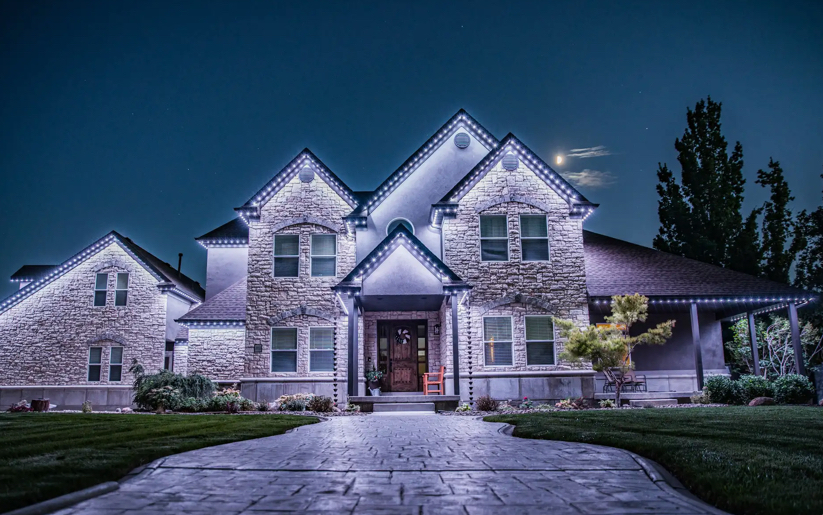
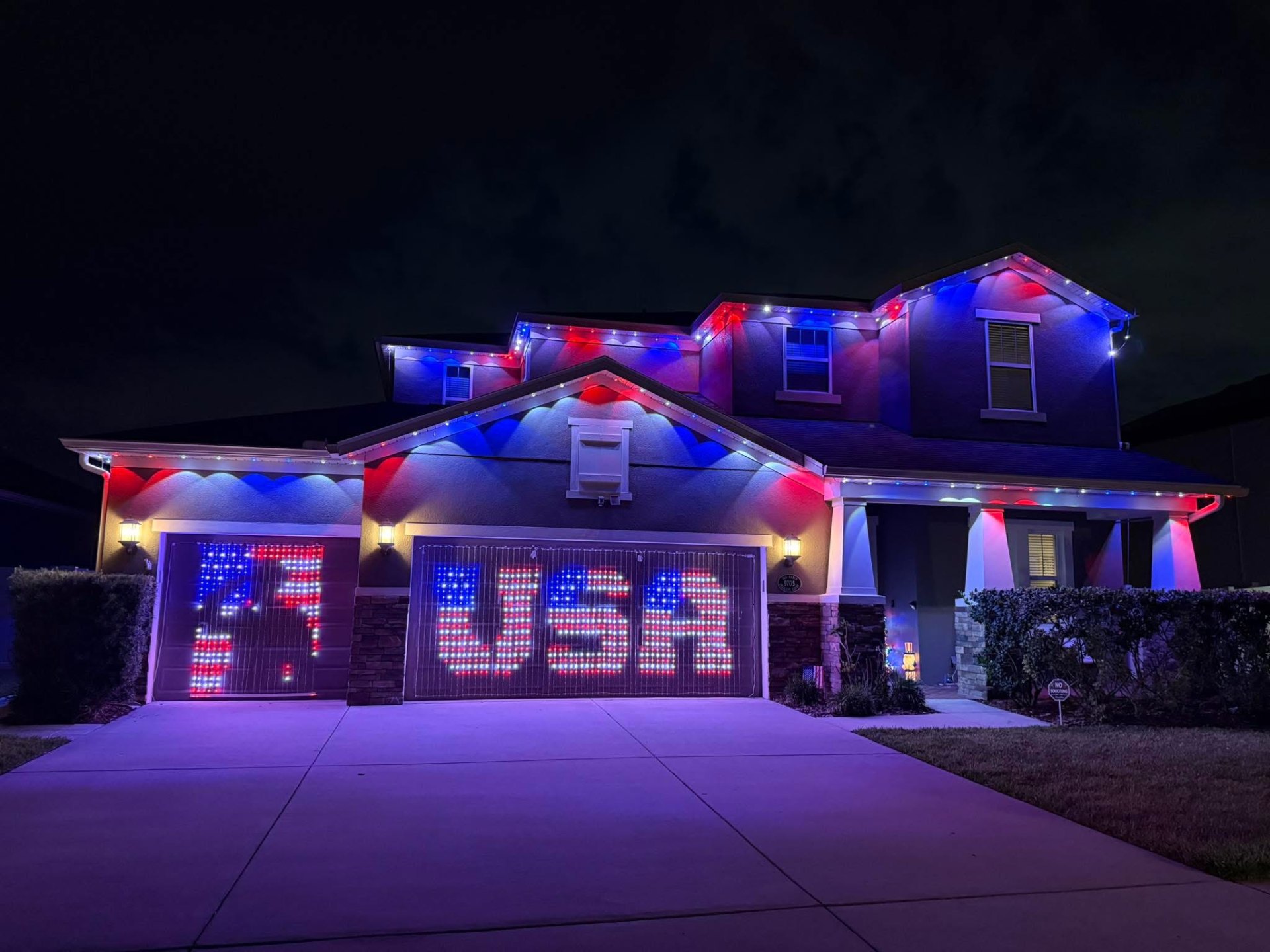
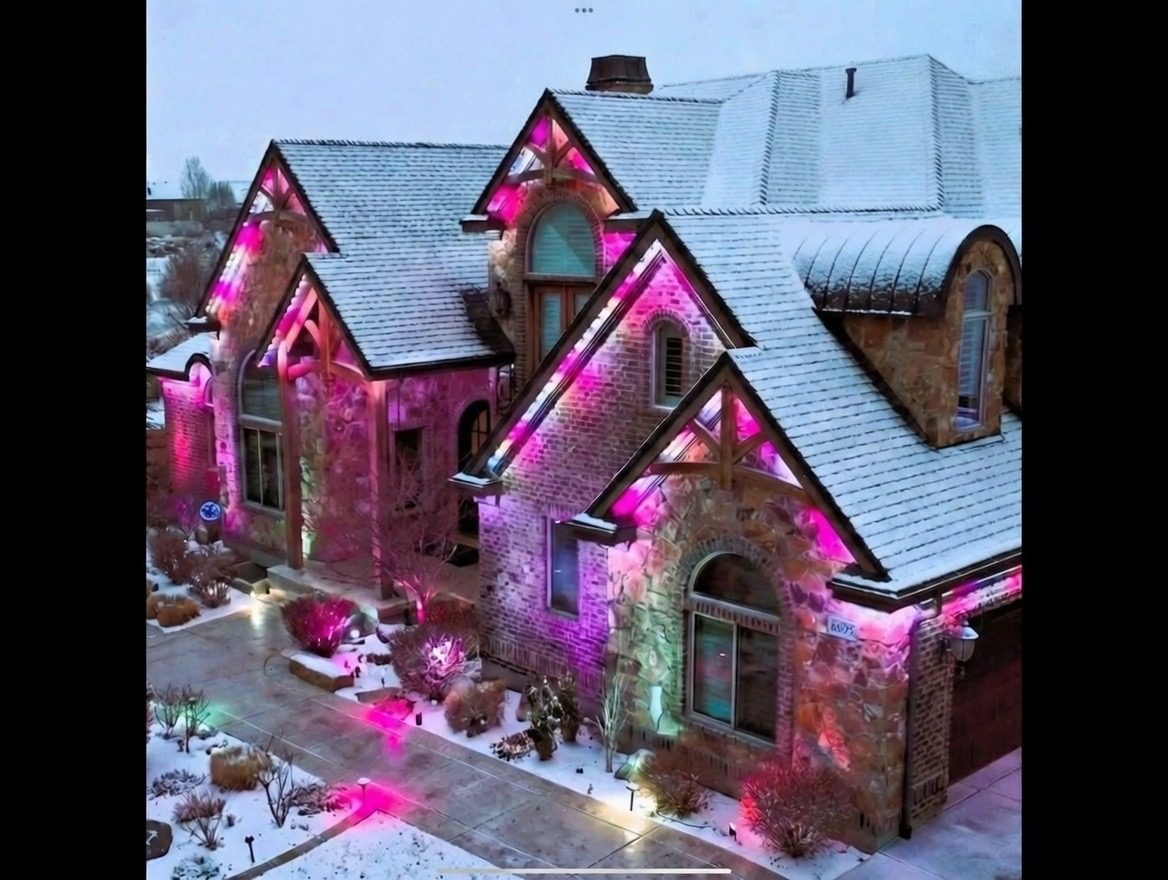
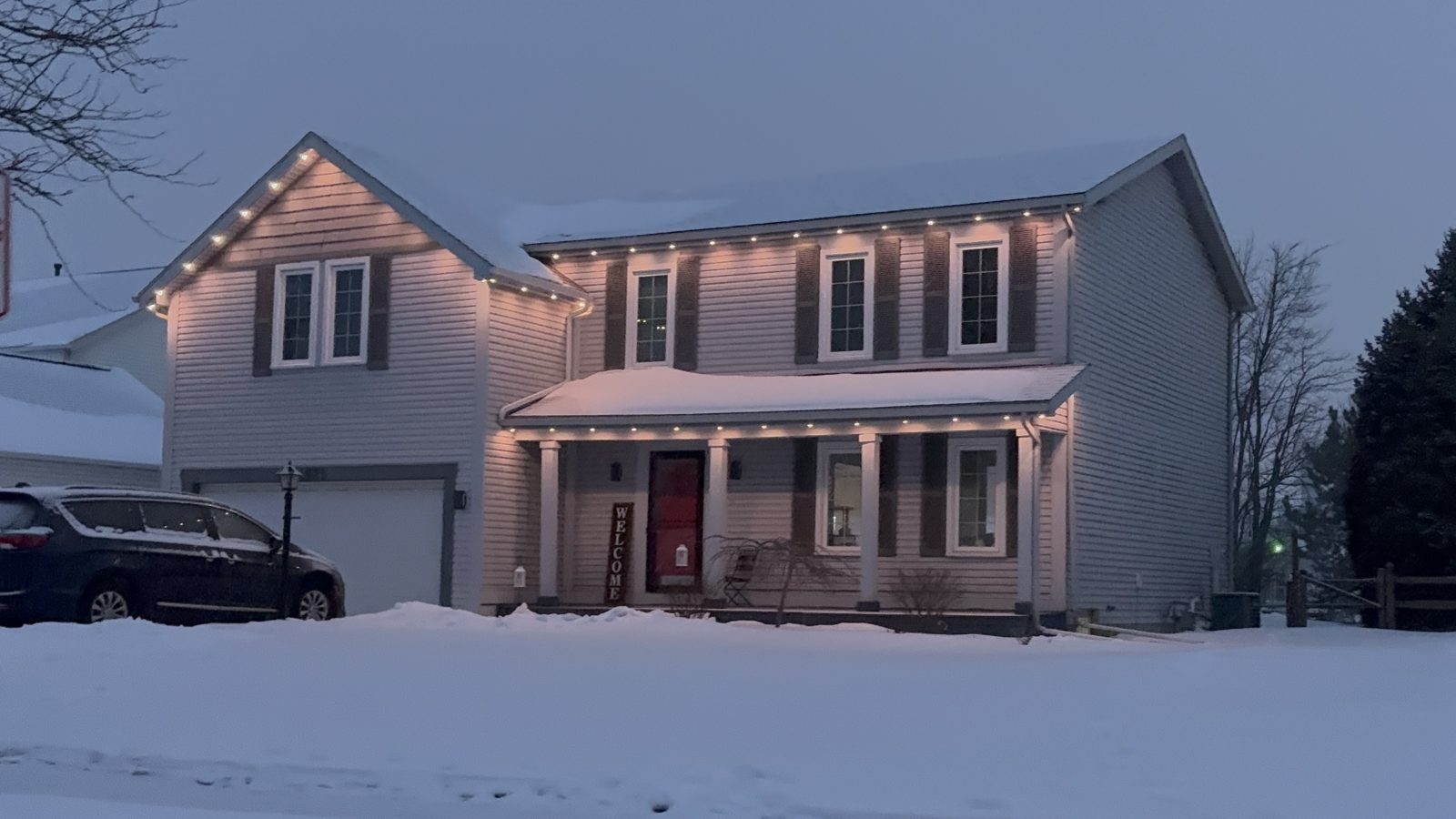
Jellyfish lighting connects to Alexa through a skill that links your Jellyfish account to your Amazon account, letting you turn scenes on or off, adjust brightness, and recall saved presets with a voice command. Once linked, saying a phrase like 'Alexa, turn on holiday lights' can trigger a full scene across your roofline.
Setup takes a few minutes and does not require any additional hardware beyond an Alexa-enabled device you likely already own. It is a matter of enabling the right skill and linking accounts correctly.
This walkthrough covers connecting Jellyfish lighting to Alexa, plus a few practical tips for naming scenes so voice commands actually work the way you expect.
What you need before starting
You need an Amazon account with the Alexa app installed, at least one Alexa-enabled device like an Echo speaker, and your Jellyfish system already installed and set up in its own app. If your Jellyfish system is not yet configured with saved scenes, set those up first since Alexa control relies on them.
A stable home Wi-Fi network is required for both the Alexa device and the Jellyfish controller, since voice commands route through the cloud to reach your system.
There is no additional hub or bridge device needed specifically for Jellyfish, unlike some smart home products that require a separate hardware bridge.
Enabling the skill and linking accounts
Open the Alexa app and search the skills section for the Jellyfish Lighting skill. Enabling it prompts you to log in with your existing Jellyfish account credentials, which links the two systems together.
Once linked, Alexa performs a discovery scan to find your controller and any saved scenes or zones associated with your account. This can take a minute or two depending on how many scenes you have saved.
After discovery, your scenes typically show up as individual smart home devices or scenes within the Alexa app, ready to be triggered by name.
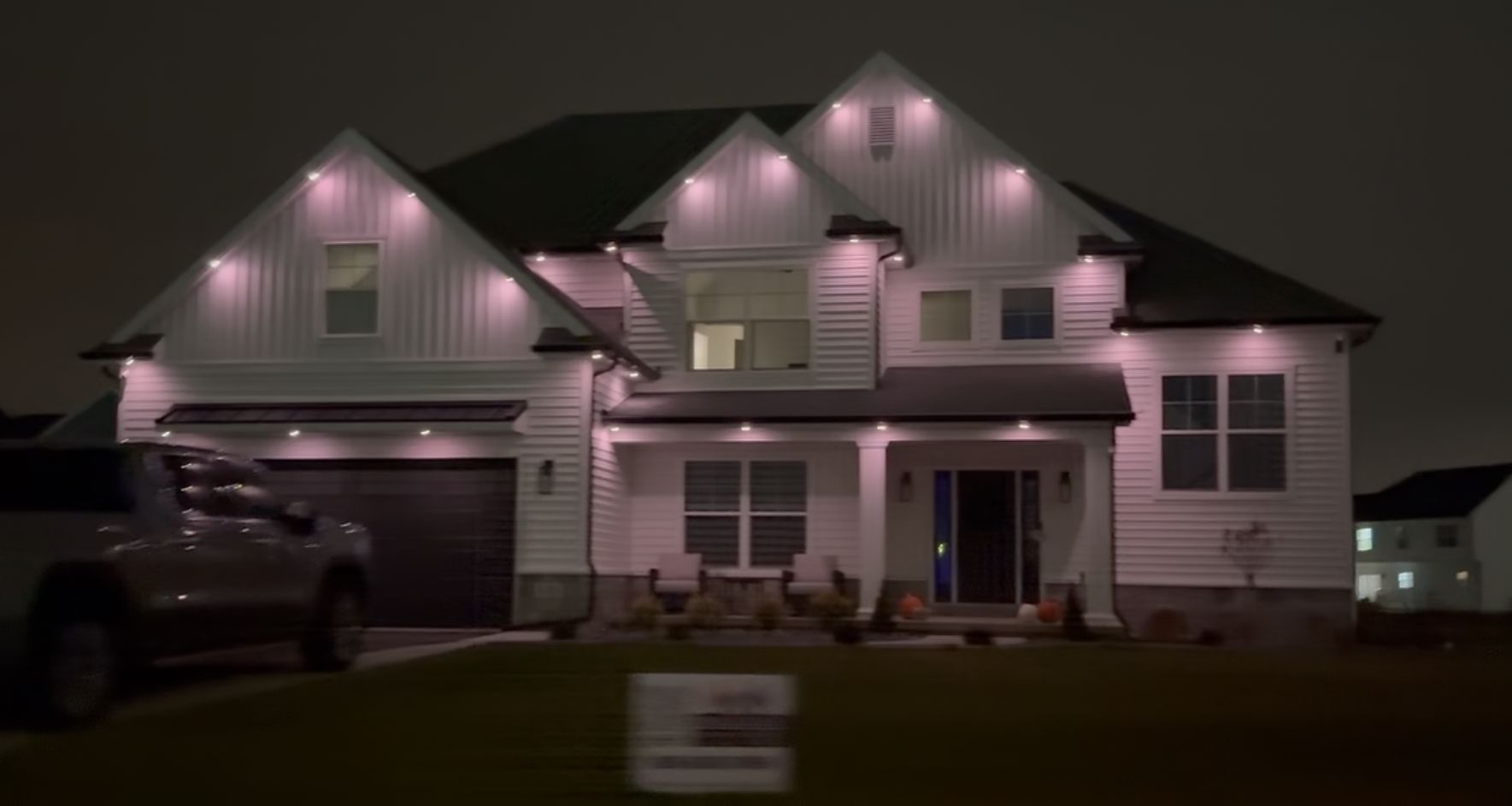
Naming scenes so voice commands work reliably
Alexa recognizes scene names as spoken phrases, so scenes with short, natural names work more reliably than long or unusual ones. 'Warm White' or 'Game Day' work better as voice commands than something like 'Front House Scene Version 3'.
Avoid near-duplicate names across different scenes, since Alexa can occasionally confuse similarly worded commands. Keeping your scene library clean, as covered in our guide to building scene presets, pays off here too.
If a specific scene name consistently causes recognition issues, renaming it slightly in the Jellyfish app and re-running Alexa discovery usually resolves it.
Basic voice commands to try first
Start with simple commands like turning a scene on or off by name, then move into brightness adjustments once you confirm basic recognition works well. Testing indoors near the Echo device first isolates whether an issue is about phrasing or connectivity.
It helps to test commands exactly as you plan to use them day to day, since natural phrasing in the moment sometimes differs from what you tested during setup.
If a command does not work as expected, checking the Alexa app's activity history shows exactly what Alexa heard, which usually explains the mismatch quickly.
- 'Alexa, turn on [scene name]'
- 'Alexa, turn off [zone name] lights'
- 'Alexa, set [scene name] to 50 percent'
- 'Alexa, what is the status of [zone name]'
- 'Alexa, run my [scene name] routine' (once routines are set up)
Building routines for more advanced automation
Once basic voice commands work, Alexa routines let you chain multiple actions together, such as a single phrase that dims your indoor lights and switches your Jellyfish scene to a movie-night look at the same time. Routines are built in the Alexa app's routines section, separate from the Jellyfish app itself.
Routines can also trigger based on time of day, so an evening routine could switch your default warm white scene on automatically at a set time, working alongside any scheduling already configured in the Jellyfish app.
It is worth deciding which scheduling should live in the Jellyfish app versus Alexa routines to avoid the two systems conflicting with each other.
Troubleshooting common Alexa connection problems
If Alexa cannot find your scenes during discovery, confirm the Jellyfish controller is online and connected in its own app first, since Alexa relies on that connection rather than talking to the hardware directly.
Occasionally accounts need to be unlinked and relinked in the Alexa skill after a password change or account update on the Jellyfish side. This resolves most 'device not responding' issues.
For broader app connectivity issues beyond just Alexa, see our guide on troubleshooting common app connection issues.
Frequently asked questions
Do I need a smart home hub to connect Jellyfish to Alexa?
No additional hub is required. You just need an Alexa-enabled device and the Jellyfish Lighting skill enabled through the Alexa app.
Can I control individual zones with Alexa, not just whole-house scenes?
Yes, if your zones are set up and named clearly in the Jellyfish app, they typically appear as separate controllable items in Alexa after discovery.
Why does Alexa sometimes not recognize my scene name?
This is usually caused by long, unusual, or near-duplicate scene names. Renaming scenes to short, natural phrases and re-running discovery in Alexa usually fixes it.
Will voice control work if my internet goes down?
No, both Alexa and the Jellyfish controller depend on an internet connection to process voice commands, so control is unavailable during an outage.
The bottom line
- Alexa control requires enabling the Jellyfish skill and linking accounts, no extra hardware needed.
- Short, natural scene names improve voice recognition reliability.
- Test basic commands before building more advanced Alexa routines.
- Discovery issues usually trace back to the Jellyfish controller's own connection status.
- Voice control complements the app but does not replace it for detailed scene building.
Get your system ready for voice control
We set up your scenes and zones during installation so features like Alexa integration work smoothly from day one.
Explore Jellyfish lighting