Govee Outdoor Lighting App Guide for Beginners
A Govee outdoor lighting app guide for beginners covering setup, scenes, schedules, and the basics you need to control your permanent lighting confidently.
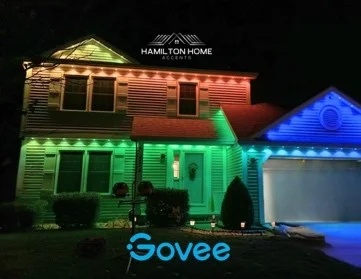
This Govee outdoor lighting app guide for beginners covers the basics you need in the first week after installation: connecting to Wi-Fi, finding scenes, and setting a schedule. None of it requires technical experience, but a quick walkthrough saves you from hunting through menus on your own.
The app can feel like a lot at first glance, with dozens of preset scenes, color options, and settings screens. Most homeowners only ever use a handful of features regularly once they know where to find them.
We walk through app setup during installation, but this guide is here as a reference for anyone who wants a refresher on Govee lighting app basics.
Getting connected for the first time
The first step after installation is connecting the controller to your home Wi-Fi network through the app, which usually takes a few minutes with guided prompts. We handle this during install, but reconnecting after a router change follows the same basic steps.
Once connected, the app should show your lighting as an available device, ready to control from anywhere your phone has an internet connection, not just while on your home network.
If the app cannot find your device, the most common fix is confirming your phone is on the same Wi-Fi network the controller was originally set up on, then restarting the app.
Finding and using preset scenes
The scenes tab is where most day-to-day interaction happens, showing a library of built-in looks ranging from simple solid colors to moving patterns and effects. Tapping any scene applies it immediately, which makes it easy to browse and compare options.
Beginners often spend their first week trying a wide range of presets just to see what the hardware can do, which is a useful way to learn the app's layout before settling into a regular routine.
Favoriting the scenes you actually like keeps them easy to find later, rather than scrolling the full library every time.
Setting up a basic schedule
The schedule feature lets you set specific on and off times, or tie the schedule to sunset and sunrise so it adjusts automatically through the year. This is the single most useful setting for beginners, since it removes the need to manually control lights every evening.
A simple starting schedule is sunset to a set evening time, which covers most homeowners' needs without any further adjustment. From there, you can layer in manual scene changes for specific occasions.
Schedules can be edited or paused at any time without deleting them, so testing different timing is low-risk.
- Set schedules to sunset and sunrise for automatic seasonal adjustment
- Start with one simple daily schedule before adding complexity
- Pause a schedule temporarily instead of deleting it for one-off changes
- Check schedules occasionally as clocks change with daylight saving time
- Combine a schedule with manual overrides for special occasions
Understanding zones and groups if your system has them
If your installation includes multiple zones, the app will show them as separate controllable sections rather than one single device. This lets you run different scenes or schedules on different parts of your home at once.
Beginners sometimes miss this feature at first and control everything as one group by default, which is fine but leaves some flexibility unused. Exploring the zones tab early helps you learn what is available on your specific setup.
For more on how zones are set up during installation, see our post on Govee lighting for multi-peak and complex roofs, which touches on how zone splits get decided.
Keeping the app and firmware updated
Like most smart home apps, the Govee app periodically releases updates that add new scenes, fix bugs, or improve performance. Keeping automatic updates enabled on your phone ensures you are not missing new features without realizing it.
Occasionally the controller itself may need a firmware update, which the app will typically prompt you to install when available. These updates take a few minutes and do not require any special technical knowledge to complete.
If a scene or feature that used to work stops behaving as expected, checking for a pending update is a good first troubleshooting step before assuming there is a hardware issue.
Frequently asked questions
What do I do if the app cannot find my lighting?
Confirm your phone is connected to the same Wi-Fi network the controller uses, then restart the app. This resolves most connection issues without needing to reset any hardware.
Can I control my lighting away from home?
Yes, once the controller is connected to Wi-Fi, the app can control your lighting from anywhere with an internet connection, not just while on your home network.
How do I stop a schedule without deleting it?
Most schedules can be toggled off temporarily in the app without removing the schedule entirely, which is useful for one-off changes without losing your regular settings.
Do I need to manually update the app?
Keeping automatic app updates enabled on your phone is the easiest way to make sure you always have the latest scenes and features available.
The bottom line
- Initial Wi-Fi setup is guided and typically takes just a few minutes.
- Preset scenes are the fastest way to explore what your lighting can do.
- A basic sunset-to-off schedule handles most day-to-day use automatically.
- Zones, if set up, let different sections of your home run independently.
- Keeping the app and firmware updated avoids most common glitches.
Want a hands-on app walkthrough during install
We set up your scenes, schedules, and zones during installation so the app makes sense from day one.
Explore Govee lighting