Setting Up Govee Scenes for Everyday Use vs. Holidays
Setting up Govee scenes for everyday use vs. holidays so your permanent lighting works for a quiet Tuesday night and a big seasonal display alike.
Setting up Govee scenes for everyday use vs. holidays is mostly about organization, not technical complexity. The app can save as many scenes as you want, but without some structure, holiday scenes and daily defaults tend to blur together and get hard to find quickly.
Most homeowners start with whatever preset scene looks good the first week, then never revisit their scene list again. That works fine short term, but a little planning early on makes the system far more useful year-round.
This post covers how to build an everyday scene you will actually use most nights, alongside dedicated holiday and event scenes in your Govee lighting app.
Start with a default everyday scene
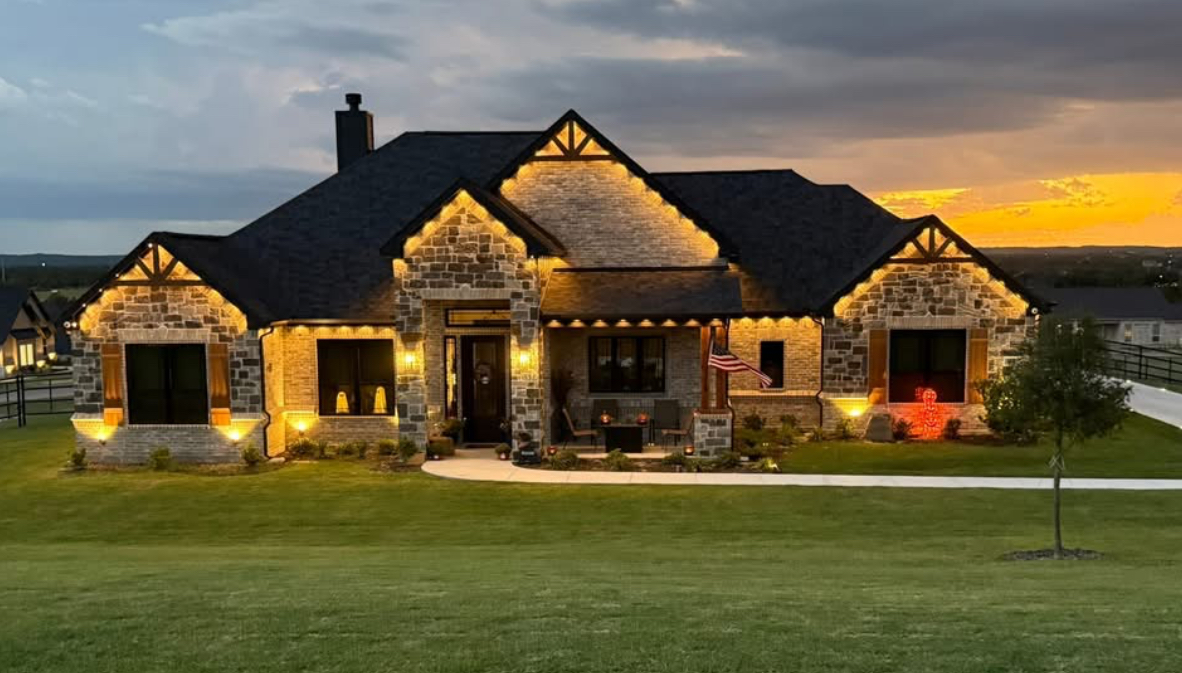
Most nights, homeowners want the lighting to just work without opening the app at all. A simple warm white scene, set as your default and scheduled to run from sunset to a set time, covers the vast majority of evenings.
This is different from an off/on switch. It is a saved scene with a specific brightness and tone that reflects how you actually want your home to look most nights, not just whatever a random preset happens to look like.
Once that default is set and scheduled, the app largely fades into the background, which is the goal for day-to-day use.
Building a dedicated holiday scene
Holiday scenes are worth building separately rather than editing your everyday scene temporarily and forgetting to switch it back. Save a distinct scene for each major holiday you decorate for, named clearly so it is easy to find.
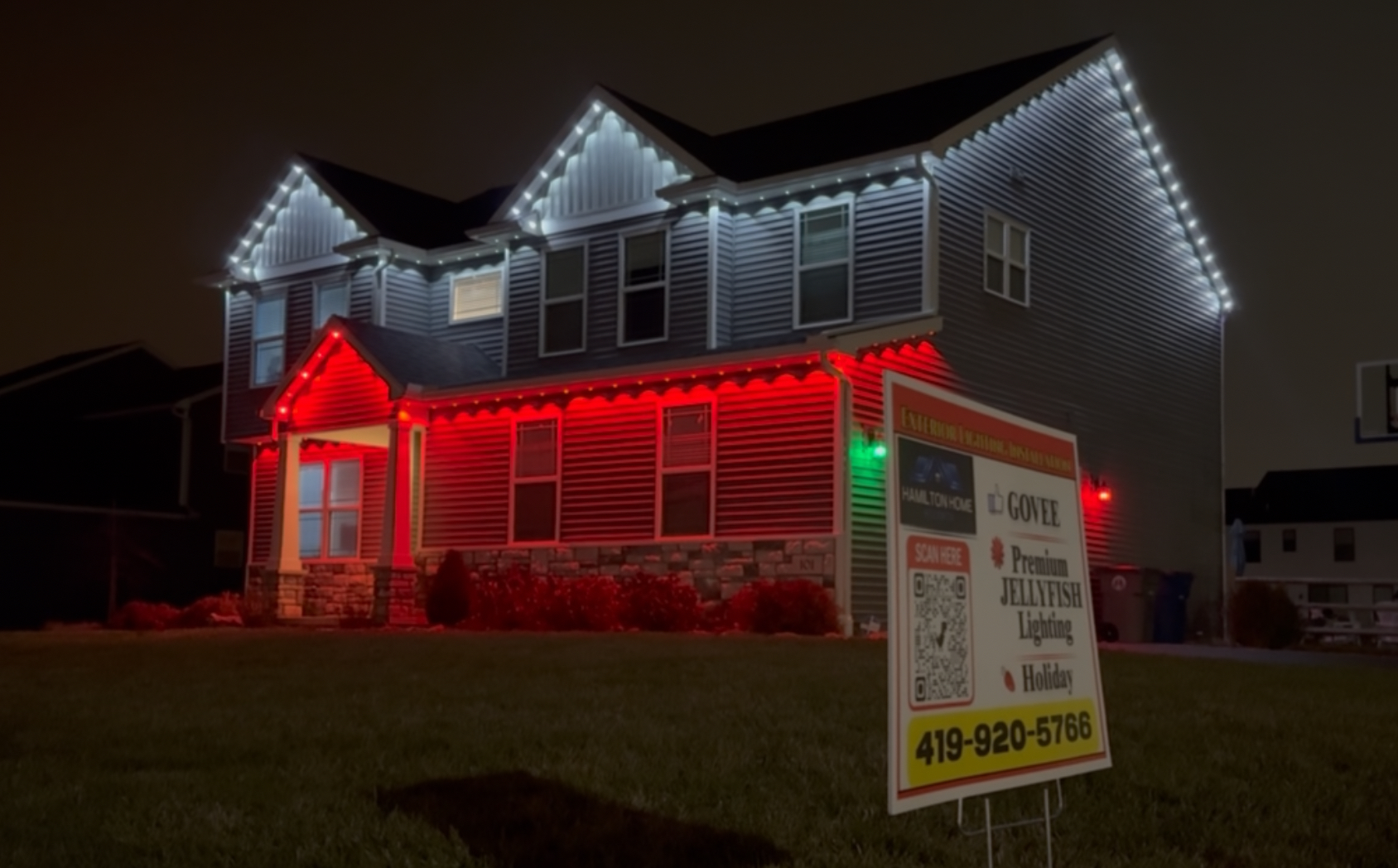
Some homeowners build a rotation, for example a red and green scene for the winter holidays, a scene for a specific team's colors on game days, or a patriotic scene for summer. Each gets its own saved entry rather than overwriting a single 'holiday' scene repeatedly.
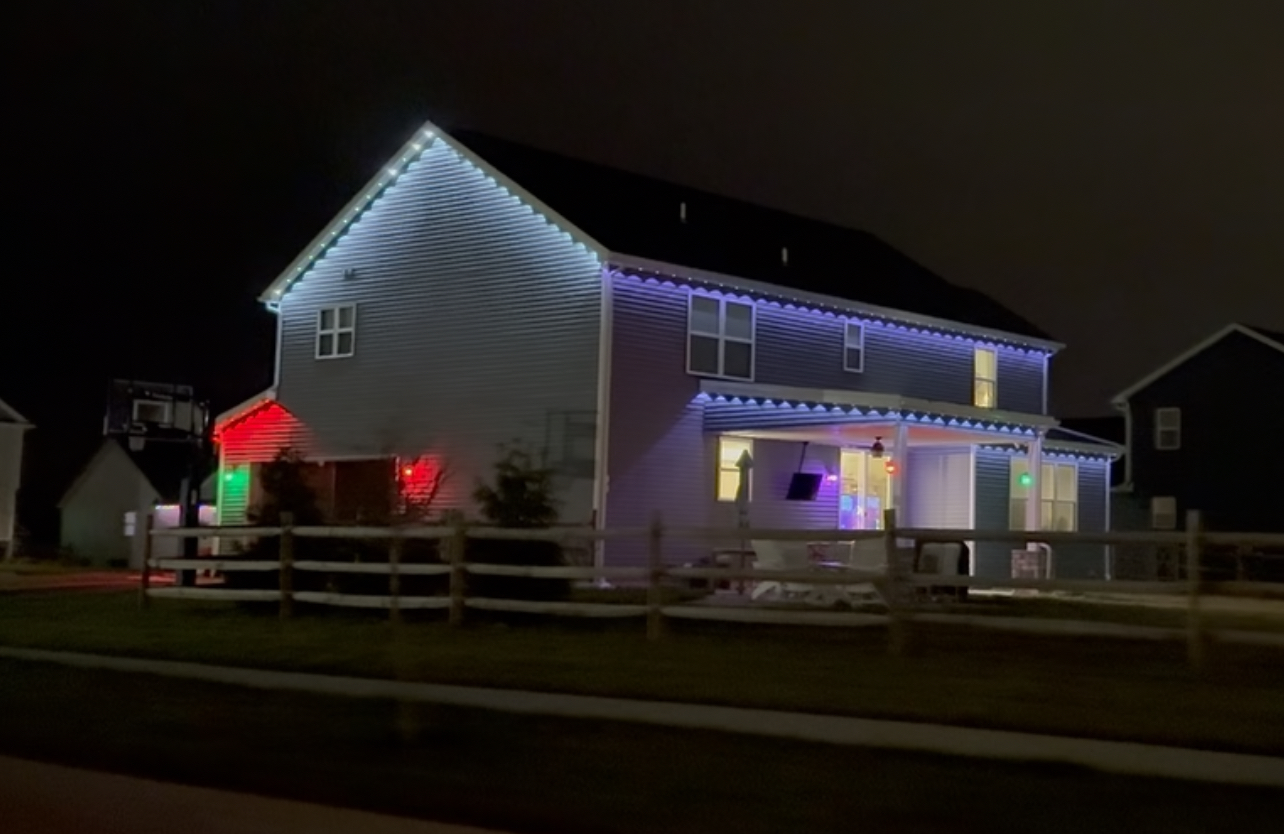
Because these scenes are just saved app settings, switching between an everyday look and a holiday display takes seconds rather than requiring any physical adjustment to the lighting.
Using schedules so you rarely open the app
A schedule tells the system to switch on automatically around sunset and off at a chosen time, without you needing to remember to do it manually each evening. This is especially useful for an everyday scene that runs most of the year.
During a specific holiday stretch, you can set a temporary schedule change or simply switch to the holiday scene manually for that window, then revert once the season passes.
Combining a default schedule with occasional manual overrides for events gives you consistency most nights and flexibility when you want something different.
- Set a default warm white scene as your everyday baseline
- Schedule sunset-to-off timing so lights run automatically
- Save distinct scenes for each holiday or event you decorate for
- Name scenes clearly so they are easy to find later
- Switch back to your default scene once a holiday season ends
Using zones to mix everyday and holiday looks
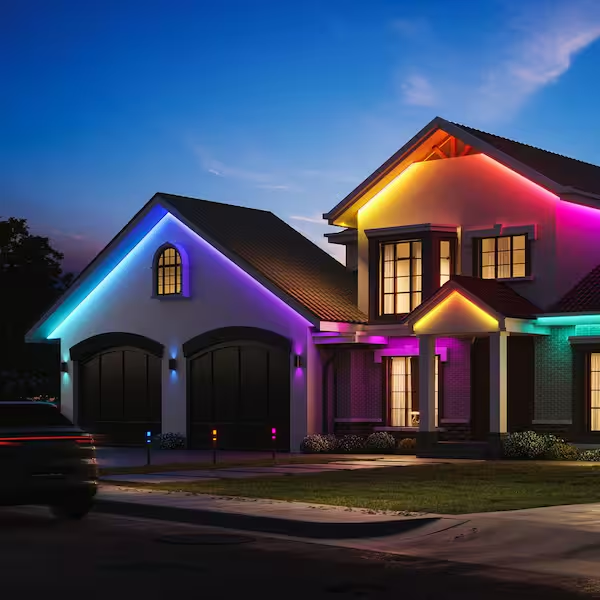
If your system is set up with zones, different sections of the house can run different scenes simultaneously, which opens up more options than an all-or-nothing approach. A front zone might stay in your everyday warm white while a back patio zone runs a holiday color for a party.
This is useful for homeowners who want a conservative, classic look from the street while still having room to experiment with color in a more private area of the yard.
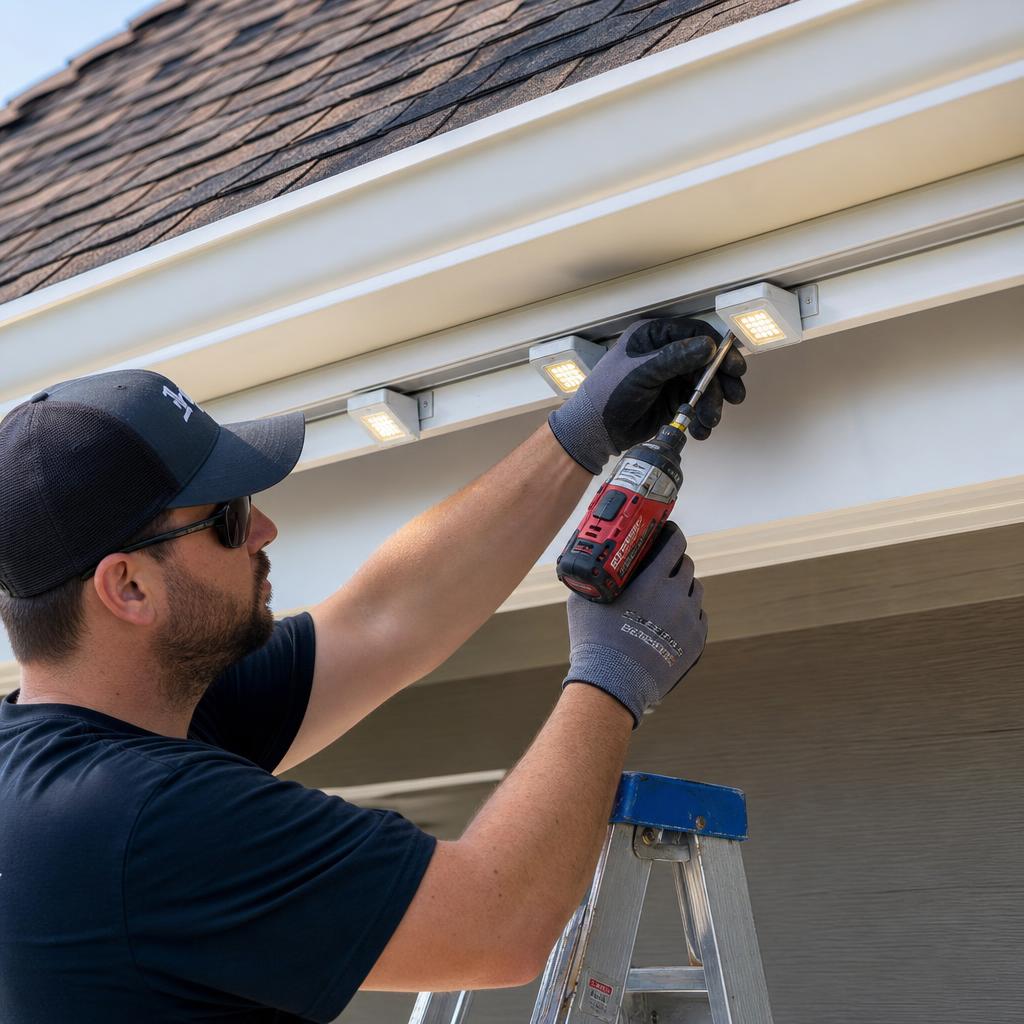
Zones are configured based on how track was wired during installation, so it is worth mentioning zone preferences during your original quote if this kind of flexibility matters to you.
Keeping your scene list organized long term
As you build more scenes over time, holiday, seasonal, event, and everyday, the list can get cluttered if left unmanaged. Periodically deleting scenes you no longer use, or renaming ones that have become unclear, keeps the app quick to navigate.
Some homeowners organize scenes into rough categories mentally, like everyday, major holidays, and one-off events, even if the app itself does not enforce folders. This kind of light organization pays off the most during a busy holiday season when you want to switch scenes quickly.
None of this requires technical skill, just a few minutes of upkeep every so often to keep the system feeling as easy to use as it was on day one.
Frequently asked questions
How many scenes can I save in the app?
The app supports saving multiple scenes, so you can keep an everyday default plus separate scenes for different holidays and events without overwriting any of them.
Do I need to manually turn lights on every night?
No, scheduling lets the system turn on around sunset and off at a chosen time automatically, so your default scene runs without daily manual input.
Can different parts of my house show different scenes at once?
Yes, if your system is set up with zones, separate sections can run independent scenes and schedules at the same time.
What happens to my everyday scene during the holidays?
It stays saved in the app. You can switch to a holiday scene temporarily and return to your everyday default once the season ends without losing either setting.
The bottom line
- A scheduled warm white default covers most everyday evenings automatically.
- Holiday and event scenes work best saved separately with clear names.
- Scheduling removes the need to manually toggle lights most nights.
- Zones let different areas run different scenes at the same time.
- A little periodic organization keeps a growing scene list easy to use.
Want help setting up scenes that fit your life
We walk through app setup during installation so your everyday and holiday scenes are ready from day one.
Explore Govee lighting